Careers page
Build a careers page from your company website, publish jobs, group them by department, and add the page to your site with a link, embed code or email.
A careers page is often a candidate’s first interaction with your company. Having it prominently linked from your website helps attract better talent, strengthens your employer brand, and makes it easier for candidates to find and share your open roles.
Build your careers page
Section titled “Build your careers page”- Go to: https://app.dover.com/edit-careers-page
- Add your company website URL
- Click Continue. Dover will populate your careers page with info from your website.
- Once you’ve made changes, click Save.
Publish jobs to your careers page
Section titled “Publish jobs to your careers page”To make your jobs visible on your careers Page, please complete the following steps:
- Go to https://app.dover.com/edit-careers-page
- Click the Publish Jobs tab and toggle on each job you want on your careers page
- You can Edit or View each of your job postings.
- If Publish is toggled is on, your job will be listed on your careers page.
Create job groups
Section titled “Create job groups”Careers page groups allow you to categorize job listings on your public careers page by departments, locations, or other organizational categories, making it easier for candidates to find relevant positions.
Adding groups
Section titled “Adding groups”- Navigate to https://app.dover.com/edit-careers-page
- Select the Group Jobs tab
- Click +Add to create a new group
- Enter a group name (this will appear as a header on your public careers page)
- Select the jobs you want to add to this group
- Click Add to create the group
Editing existing groups
Section titled “Editing existing groups”- Go to https://app.dover.com/edit-careers-page
- Select the Group Jobs tab
- Find the group you want to modify and click Edit
- Update the group name if needed
- Add or remove jobs from the group as required
- Click Save to apply your changes
Managing ungrouped jobs
Section titled “Managing ungrouped jobs”Jobs that are not assigned to any group will automatically appear in the “Ungrouped” section until they are added to a specific group.
To add an ungrouped job to a group:
- Navigate to the Group Jobs tab
- Either edit an existing group or create a new one
- Select the job from the available jobs list
- Click Save to update the group
Groups on your public careers page
Section titled “Groups on your public careers page”When candidates visit your public careers page:
- Published jobs in groups will be displayed under their respective group name headers (e.g., “Engineering”) listed in alphabetical order
- Jobs within each group are listed in alphabetical order
- Published jobs that remain ungrouped will appear under the “More jobs” header at the bottom of the page
Add careers page to your website
Section titled “Add careers page to your website”There are three ways to integrate your careers page:
1. Get a link to add to your website navigation
Section titled “1. Get a link to add to your website navigation”- Go to https://app.dover.com/edit-careers-page
- Click Setup on the “Add your Careers page to your website” banner
- Click Get a link and follow the instructions to copy your unique link
- Add the unique link to your website navigation
- Publish changes to your website and verify the link works
2. Get an embed code to directly embed on your website
Section titled “2. Get an embed code to directly embed on your website”- Go to https://app.dover.com/edit-careers-page
- Click Setup on the “Add your Careers page to your website” banner
- Click Get an embed code and follow the instructions to copy your embed code
- Add the code snipped to the body of your careers page, adjusting width and height as needed
- Publish changes to your website and verify embed is working.
3. Email instructions to your website admin
Section titled “3. Email instructions to your website admin”- Go to https://app.dover.com/edit-careers-page
- Click Setup on the “Add your Careers page to your website” banner
- Click Email instructions and complete the Name and Email address for your site admin
- (optional) Leave a note with additional instructions
- Click Send Email
Email preview:
Section titled “Email preview:”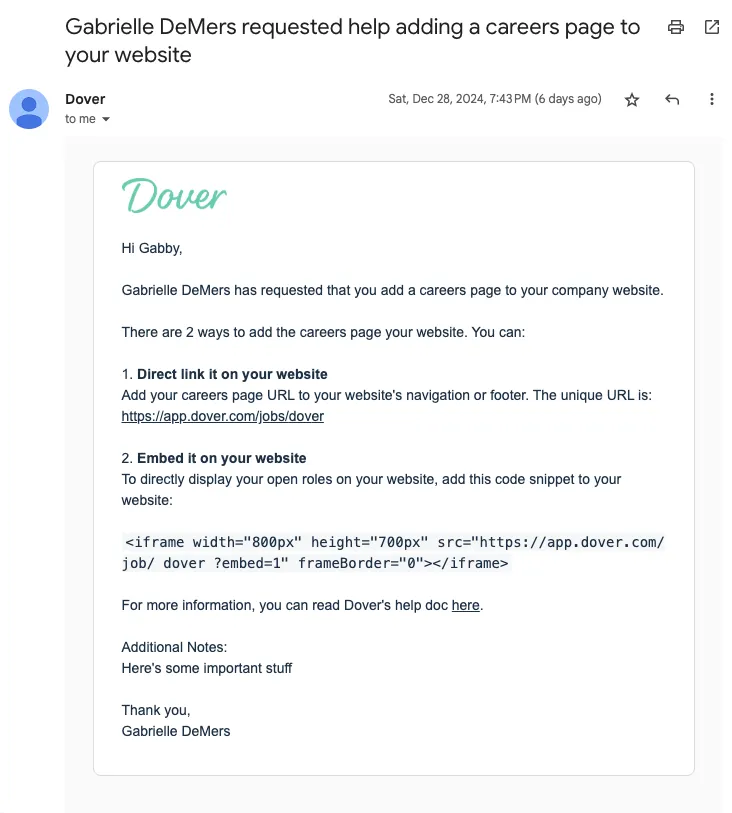
Frequently Asked Questions
Section titled “Frequently Asked Questions”How big should my logo be?
Section titled “How big should my logo be?”Your team logo should be at least 40px in height.
What size should I make the embed?
Section titled “What size should I make the embed?”We recommend starting with 800px × 700px and adjusting based on your website’s layout.
Can I customize the appearance of my careers page?
Section titled “Can I customize the appearance of my careers page?”Yes, you can easily modify your company description and branding including adding photos and formatting like headers, font styling, and bullets.
Where should I place the careers link?
Section titled “Where should I place the careers link?”Most companies include their careers page in their main navigation and footer for easy access.
Can I add a job to multiple groups?
No, each job can only belong to one group at a time.
What happens to a job if I delete its group?
Section titled “What happens to a job if I delete its group?”If you delete a group, all jobs in that group will move to the “Ungrouped” section.
Do unpublished jobs appear in groups on the public careers page?
Section titled “Do unpublished jobs appear in groups on the public careers page?”No, only published jobs will be visible on your public careers page, even if they’re added to a group.
Can I rearrange the order of groups on my careers page?
Section titled “Can I rearrange the order of groups on my careers page?”Currently, groups are displayed in alphabetical order on your public careers page.
Is there a limit to how many groups I can create?
Section titled “Is there a limit to how many groups I can create?”There is no limit on the number of groups you can create for your Dover Careers Page.

