Slack integration
Connect Dover to your company's Slack to send candidate updates to Slack channels for each job.
Dover’s Slack integration allows you to receive candidate notifications directly in your company’s Slack channels, so your team can stay up to date on pipeline changes.
Connect Dover to Slack
Section titled “Connect Dover to Slack”- Go to Settings > Integrations: https://app.dover.com/settings/company/integrations
- Open the Slack tab.
- Click Connect Slack
- Follow the prompts to authorize Dover in Slack.
If your Slack connection is no longer active, return to the Slack tab and click Reconnect Slack.
Set up Slack notifications for a job
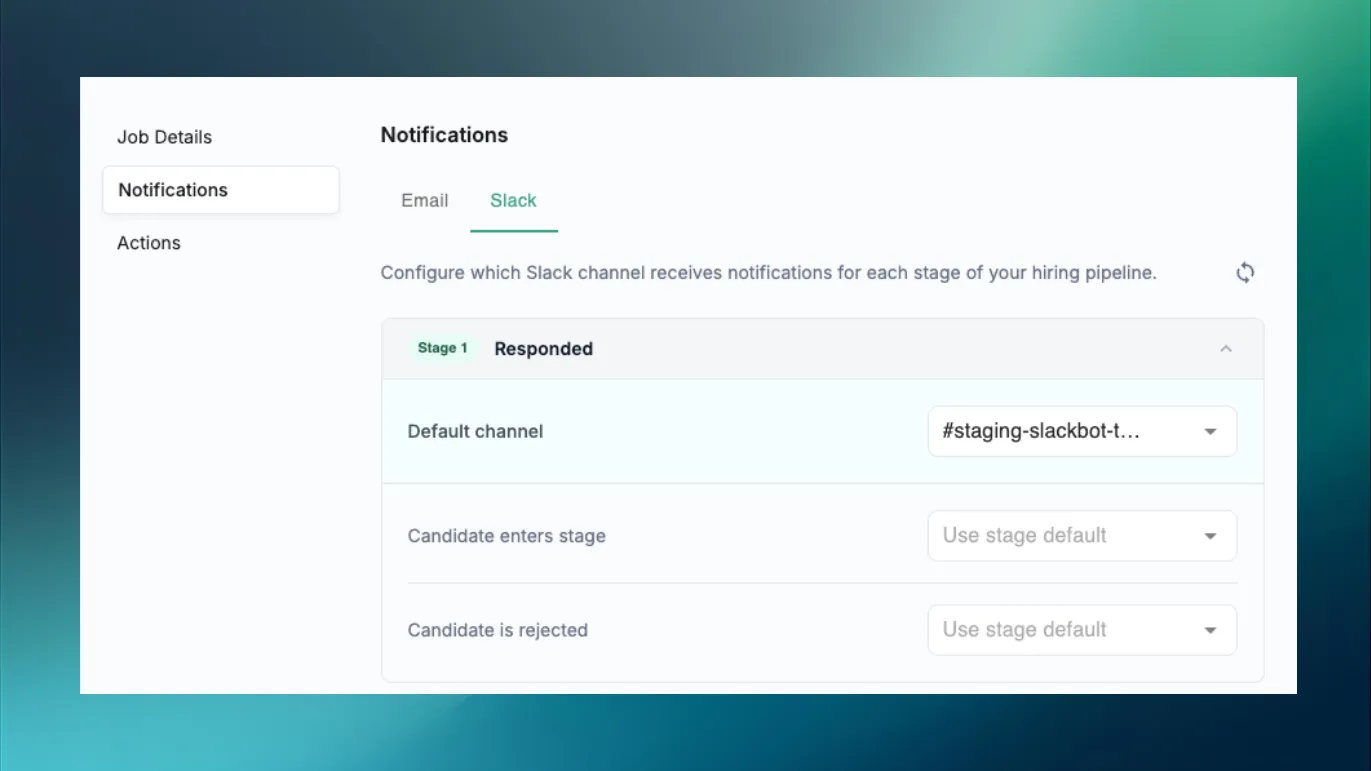
Section titled “Set up Slack notifications for a job”Slack notifications are configured per job.
- Select a job.
- Open Job Settings
- Select Notifications, and click the Slack tab
- Select the interview stages you want to be notified about.
- To turn on the notifications, choose a Slack channel from the dropdown to send candidate notifications to that channel.
Available Slack notifications
Section titled “Available Slack notifications”You can enable notifications for the following events:
- When a candidate enters an interview stage
- When a candidate is rejected from an interview stage
- When an interview is scheduled for an interview stage
- When an interview is starting for an interview stage
- When a feedback form is submitted for an interview stage
Frequently Asked Questions
Section titled “Frequently Asked Questions”Do I need to set up Slack notifications for every job?
Section titled “Do I need to set up Slack notifications for every job?”Yes. Slack notifications are configured individually for each job.
I’m not receiving notifications—what should I check?
Section titled “I’m not receiving notifications—what should I check?”First, confirm your Slack connection is active in Settings > Integrations > Slack. If needed, click Reconnect Slack.
Then verify the job’s Notifications settings and that a channel is selected for each enabled notification.
Can I send different stages to different channels?
Section titled “Can I send different stages to different channels?”Yes. When you enable a notification, you can choose the channel for that notification from the dropdown.

