YC Work at a Startup (WaaS) integration
Sync your Dover jobs to WaaS and automatically import WaaS candidates into Dover.
Overview
Section titled “Overview”The YCombinator WaaS integration allows you to:
- Connect Dover to YC via API
- Sync jobs between Dover and Y Combinator
- Automatically import new applicants into Dover
- Manually export candidates from YC to Dover
- Export jobs from Dover to WaaS
Note: Only available to YC companies.
1. Set up API integration (required)
Section titled “1. Set up API integration (required)”This allows you to sync jobs and candidates that apply to your WaaS jobs into Dover.
Step 1: Get your Dover API key
Section titled “Step 1: Get your Dover API key”- Navigate to the Job Boards view in Dover
- Click on the Y Combinator Work at a Startup (WaaS) job board
- Click Show Key to reveal your unique Work at a Startup key, copy it, and click I set it up to activate the job board
Step 2: Add Dover API key to WaaS
Section titled “Step 2: Add Dover API key to WaaS”- Go to https://bookface.ycombinator.com/workatastartup/integrations
- Locate the Dover card and click Connect
- Paste your Dover API key and click Save
2. Connect your jobs
Section titled “2. Connect your jobs”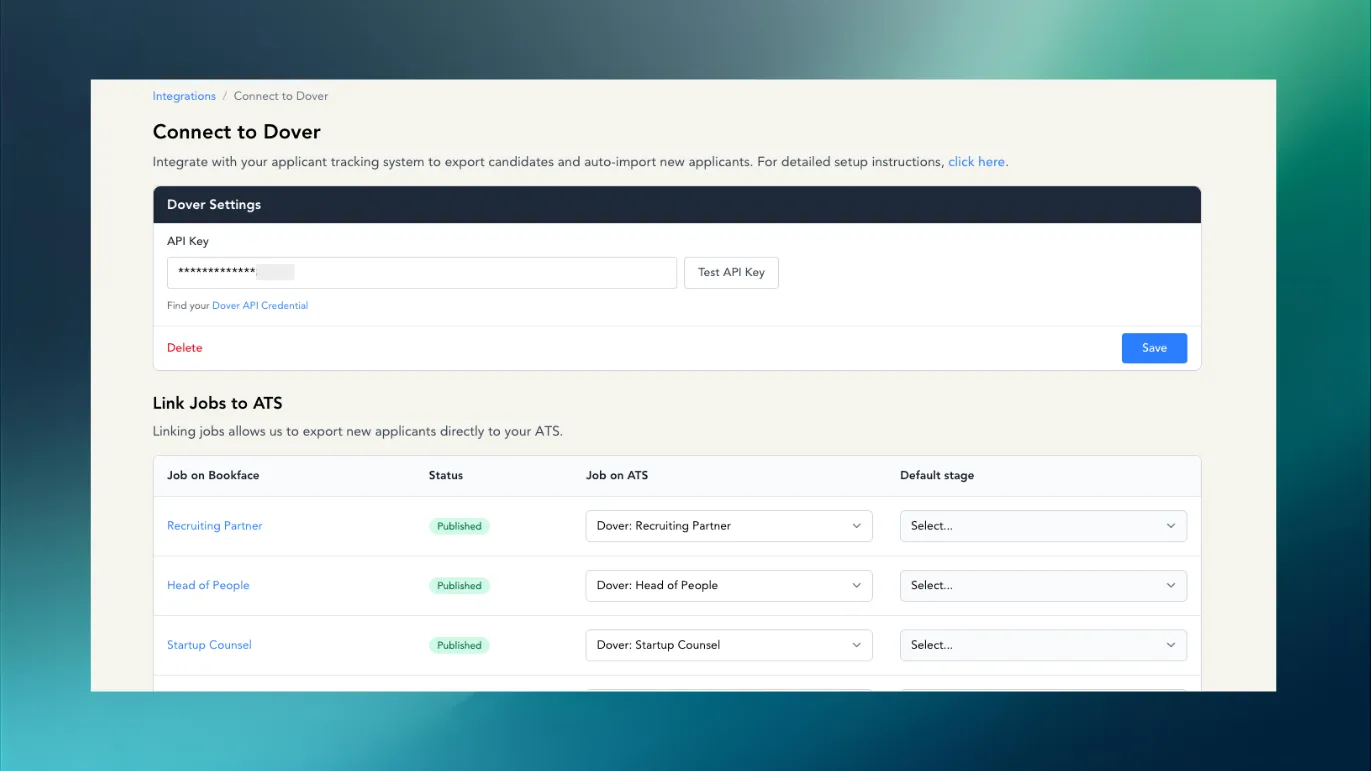
Once the API key is connected, you can sync your jobs.
Step 1: Activate jobs in Dover
Section titled “Step 1: Activate jobs in Dover”- Go to Job > Job Boards.
- Click on Y Combinator job board
- Click Active
Step 2: In Y Combinator (WaaS)
Section titled “Step 2: In Y Combinator (WaaS)”- Go to: https://bookface.ycombinator.com/workatastartup/integrations
- Select Dover → Click Configure
- In Link jobs to ATS:
- Select the corresponding Dover job for each WaaS job
- Click Save
Send candidates from Y Combinator to Dover
Section titled “Send candidates from Y Combinator to Dover”Automatically export candidates
Section titled “Automatically export candidates”- Once jobs are connected, new applicants will automatically sync to Dover with source listed as “YC WaaS”
- Any candidates who were in your WaaS job prior to the sync will not show up in Dover.
Manually export candidates
Section titled “Manually export candidates”You can manually export candidates from YC into Dover when jobs are connected.
- Go to your inbox:
https://bookface.ycombinator.com/workatastartup/inbox/ - Select a candidate
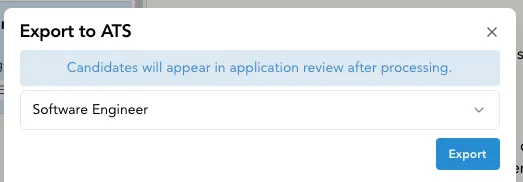
- Click export icon
- In Export to ATS, choose Dover job from dropdown options
- Click Export
Sync Dover job descriptions to Y Combinator (optional)
Section titled “Sync Dover job descriptions to Y Combinator (optional)”This allows you to publish Dover jobs directly to WaaS and keep job descriptions in sync.
Step 1: In Dover
Section titled “Step 1: In Dover”- Go to app.dover.com and select a job
- Click Job Boards and select Y Combinator Work at a Startup (WaaS) job board
- Copy your unique job posting import URL (Dover Careers Page URL)
Step 2: In Y Combinator (WaaS)
Section titled “Step 2: In Y Combinator (WaaS)”- Go to https://bookface.ycombinator.com/jobs/import
- Select Dover as your ATS system and paste your unique job posting import url
- Click Load jobs, pick jobs to import, and click Import selected jobs
Imported jobs will appear as Drafts with job descriptions synced from Dover. Edit the job description and click Publish to make them live.
Frequently Asked Questions
Section titled “Frequently Asked Questions”Who can use this integration?
Section titled “Who can use this integration?”Only YC companies with active YC accounts can use this integration.
How do I find WaaS candidates in Dover?
Section titled “How do I find WaaS candidates in Dover?”In the Applicants or Candidates tabs, filter by Source and select Y Combinator Work at a Startup (WaaS).
Will old WaaS applicants sync into Dover automatically?
Section titled “Will old WaaS applicants sync into Dover automatically?”No, once you connect a job to WaaS, only new applicants will automatically sync into Dover. You can export them manually.
Can I export WaaS candidates manually into Dover?
Section titled “Can I export WaaS candidates manually into Dover?”Yes, you can manually export candidates from both the Candidates view and Inbox view if needed.
How can I identify WaaS applicants in Dover?
Section titled “How can I identify WaaS applicants in Dover?”Y Combinator applicants will be marked with “YC WaaS” as their source.
Does candidate status sync between the platforms?
Section titled “Does candidate status sync between the platforms?”No, the status you set in Dover will not sync back to WaaS.
Why isn’t my Dover job showing up on WaaS?
Section titled “Why isn’t my Dover job showing up on WaaS?”Make sure the WaaS job board is set to “Active” on your Dover job board and that the Dover job is connected in WaaS. See steps above.
Do I need to publish jobs after using the Import Jobs feature in WaaS?
Section titled “Do I need to publish jobs after using the Import Jobs feature in WaaS?”Yes, imported jobs appear as drafts. You’ll need to edit the job description if needed and click Publish to make them live.
Can I select which jobs to import?
Section titled “Can I select which jobs to import?”Yes, after loading your jobs, you can pick which specific jobs to import from the dropdown options.
Will job descriptions sync from Dover to WaaS?
Section titled “Will job descriptions sync from Dover to WaaS?”Job descriptions are automatically synced from Dover when using the job import feature described above.

