Slack integration
Connect Dover to Slack and choose a channel for each interview stage, so your team sees candidate updates as they happen.
Overview
Section titled “Overview”Connect your company’s Slack workspace so Dover posts candidate updates in Slack channels. You connect Slack once for the company, then choose the channels for each job. You need the Integrations company permission to connect Slack.
Connect Dover to Slack
Section titled “Connect Dover to Slack”- Click Settings → Integrations.
- Open Slack.
- Click Connect Slack.
- Follow the prompts to authorize Dover in Slack.
If your Slack connection stops working, return to the Slack tab and click Reconnect Slack. To remove the connection, disconnect Slack from the same tab.
Set up Slack notifications for a job
Section titled “Set up Slack notifications for a job”Slack notifications are set up for each job and each interview stage.
- Open the job and click the gear icon (Job Settings).
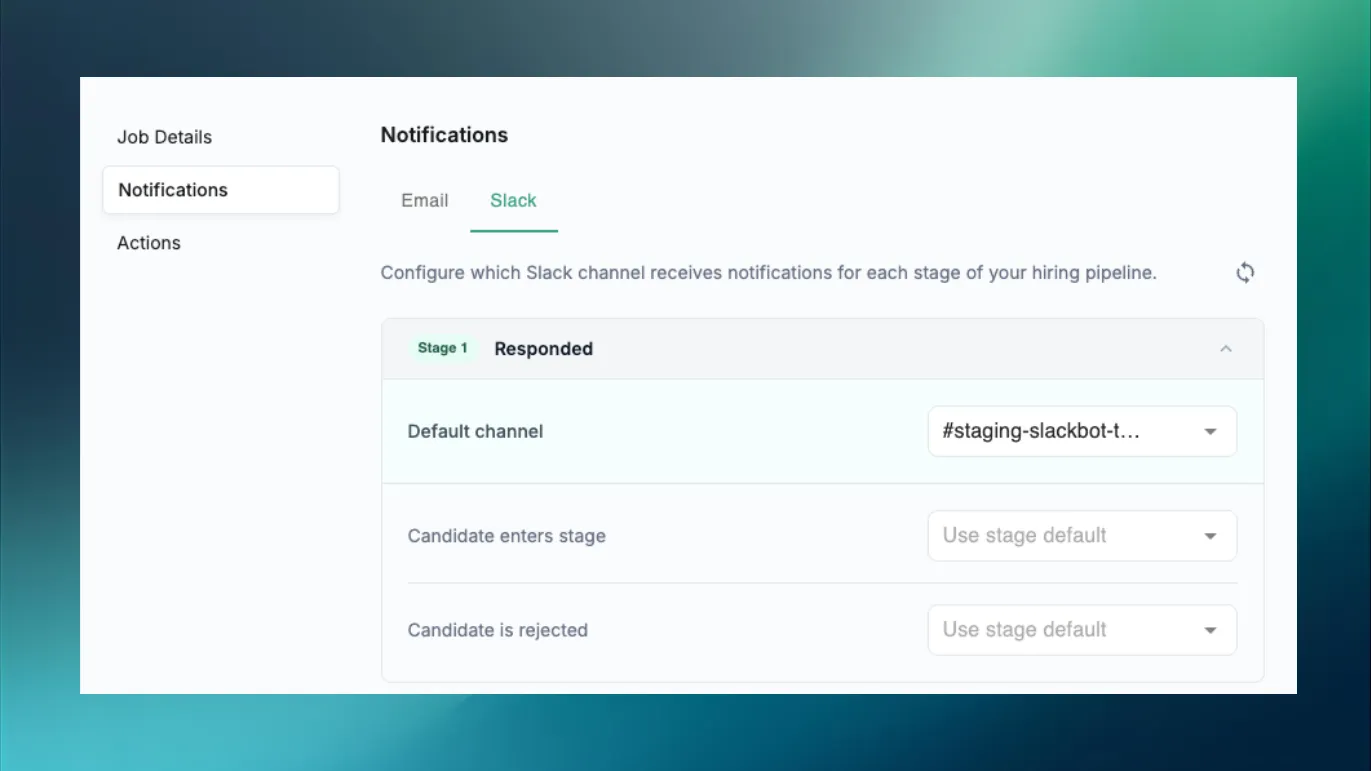
- Click Notifications, then the Slack tab. You can also open the job from the list on Settings → Integrations → Slack.
- For an interview stage, choose a Default channel.
- To send one kind of update somewhere else, choose a different channel for that notification. Use stage default sends it to the default channel.
If the channel you want isn’t listed, type at least a few letters of its name to search, or click the refresh icon to reload your channels from Slack.
Available Slack notifications
Section titled “Available Slack notifications”| Notification | Available for |
|---|---|
| Candidate enters stage | Every stage |
| Candidate is rejected | Every stage |
| Interview is scheduled | Interview stages |
| Interview is starting | Interview stages |
| Feedback form is submitted | Interview stages |
Frequently asked questions
Section titled “Frequently asked questions”Do I need to set up Slack for every job?
Section titled “Do I need to set up Slack for every job?”Yes. Channels are chosen for each job. Connect Slack once, then choose channels on each job’s Slack tab.
I’m not receiving notifications. What should I check?
Section titled “I’m not receiving notifications. What should I check?”Confirm Slack is still connected in Settings → Integrations → Slack, and click Reconnect Slack if it asks. Then check the job’s Slack tab for a channel on each notification you want. If Slack says it’s rate limited, wait a few seconds and try again.
Can I send different stages to different channels?
Section titled “Can I send different stages to different channels?”Yes. Each stage has its own Default channel, and each notification can use a different one.
Why can’t I connect Slack?
Section titled “Why can’t I connect Slack?”Connecting needs the Integrations company permission. Ask a member who has it, such as an Admin.
Are Slack notifications the same as email notifications?
Section titled “Are Slack notifications the same as email notifications?”No. Email is controlled on the job’s Email tab. See Notifications.

