Approvals
Require sign-off before a job goes live or an offer reaches a candidate, and choose who approves.
Overview
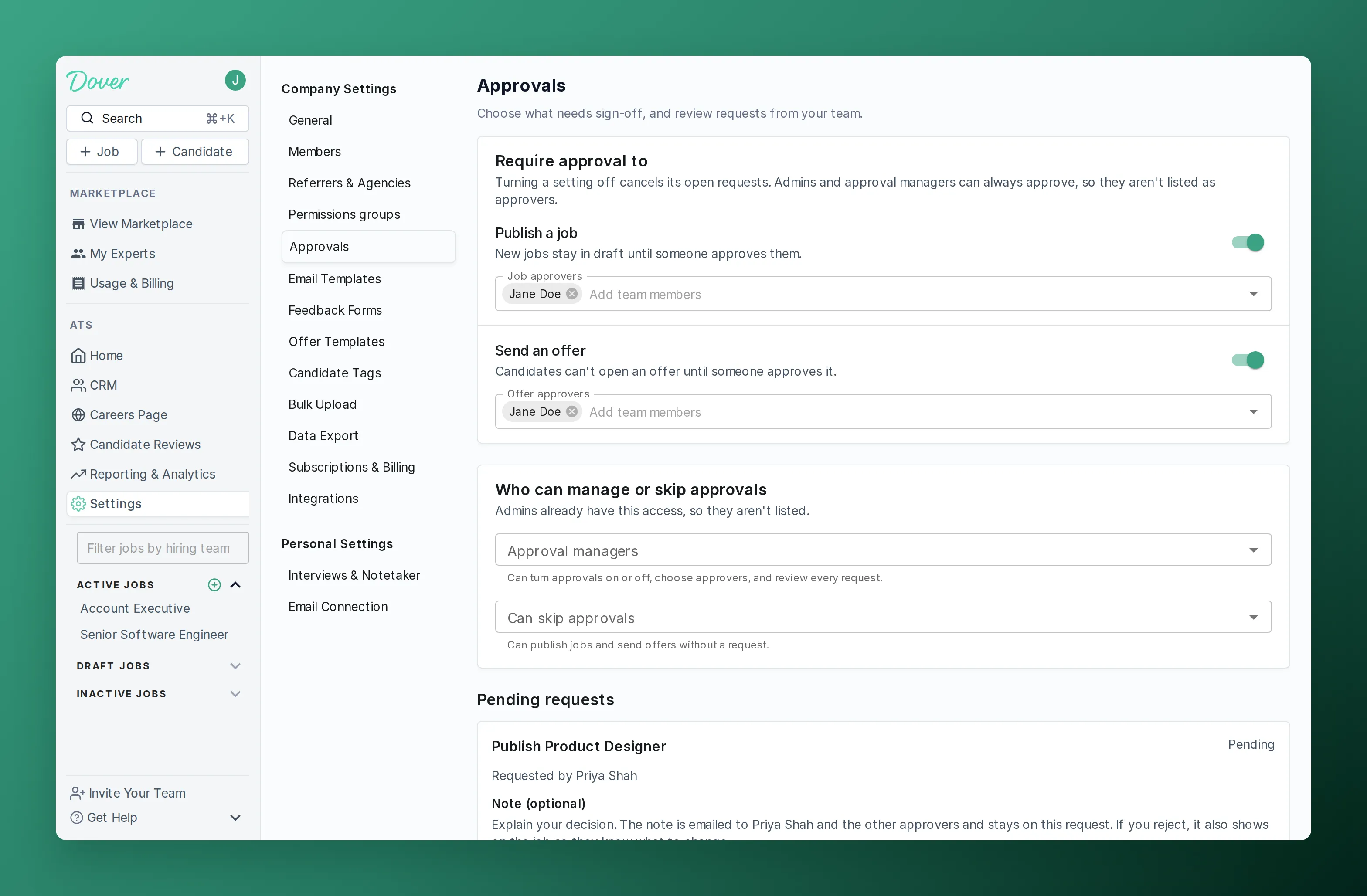
Section titled “Overview”Approvals let you require sign-off before a job goes live or before a candidate can open an offer. Turn them on, choose who approves, and review requests in Settings → Approvals.
Who approves
Section titled “Who approves”- Admins and approval managers can approve any request, and never need approval themselves.
- Job approvers approve requests to publish jobs, and can publish jobs without asking.
- Offer approvers approve requests to send offers, and can send offers without asking.
- Members in Can skip approvals can publish jobs and send offers without asking, but can’t approve requests.
Everyone else has to request approval. A member can be in more than one of these lists.
Turn on approvals
Section titled “Turn on approvals”Admins and approval managers can change these settings.
- Go to Settings → Approvals.
- Under Require approval to, turn on Publish a job, Send an offer, or both.
- Choose your Job approvers and Offer approvers.
Changes save as you make them.
Under Who can manage or skip approvals, choose your Approval managers (admins only) and who Can skip approvals. Approval access lives on this page, not in permissions groups, so changing someone’s permissions group doesn’t affect it.
Request approval to publish a job
Section titled “Request approval to publish a job”New jobs start as drafts. If publishing needs approval, click Save on the Job Posting tab and then Request approval, or click Draft next to the job title and choose Request approval.
Dover emails your approvers, and the job shows Pending approval until one of them decides. Only a job’s first publish needs approval. Reactivating a job that was live before doesn’t.
Request approval to send an offer
Section titled “Request approval to send an offer”If offers need approval, create the offer as usual and click Sign and request approval at the end. The candidate can’t open the offer until an approver approves it. See Offers.
Review a request
Section titled “Review a request”Each approval email links to the request. You can also find it under Pending requests in Settings → Approvals.
- Read the request. Offer requests show a preview of the offer.
- Add a note if you want to explain your decision.
- Click Approve or Reject.
When you approve, Dover publishes the job or makes the offer available to the candidate. When you reject, the job stays a draft and the offer stays hidden, and the requester sees your note so they know what to change. Either way, Dover emails the requester and the other approvers.
To withdraw a request you made, click Cancel request.
Turn approvals off
Section titled “Turn approvals off”Turning off Publish a job or Send an offer cancels its open requests. Draft jobs can then be published without approval. Offers that were waiting stay hidden from the candidate, so recreate them to send them.
Frequently asked questions
Section titled “Frequently asked questions”Can I approve my own request?
Section titled “Can I approve my own request?”No. You only request approval when you can’t approve that kind of request yourself.
What happens if someone publishes a job that has a pending request?
Section titled “What happens if someone publishes a job that has a pending request?”If they don’t need approval, for example an admin, the job goes live and Dover cancels the request.
Who gets approval emails?
Section titled “Who gets approval emails?”Admins, approval managers, and the approvers for that kind of request get an email for each new request and each decision. The requester gets an email when they send a request and when it’s decided.
Why can’t I turn approvals on?
Section titled “Why can’t I turn approvals on?”Approvals aren’t included in every plan. If your plan doesn’t include them, Settings → Approvals shows a preview. See dover.com/pricing.

